May 2026
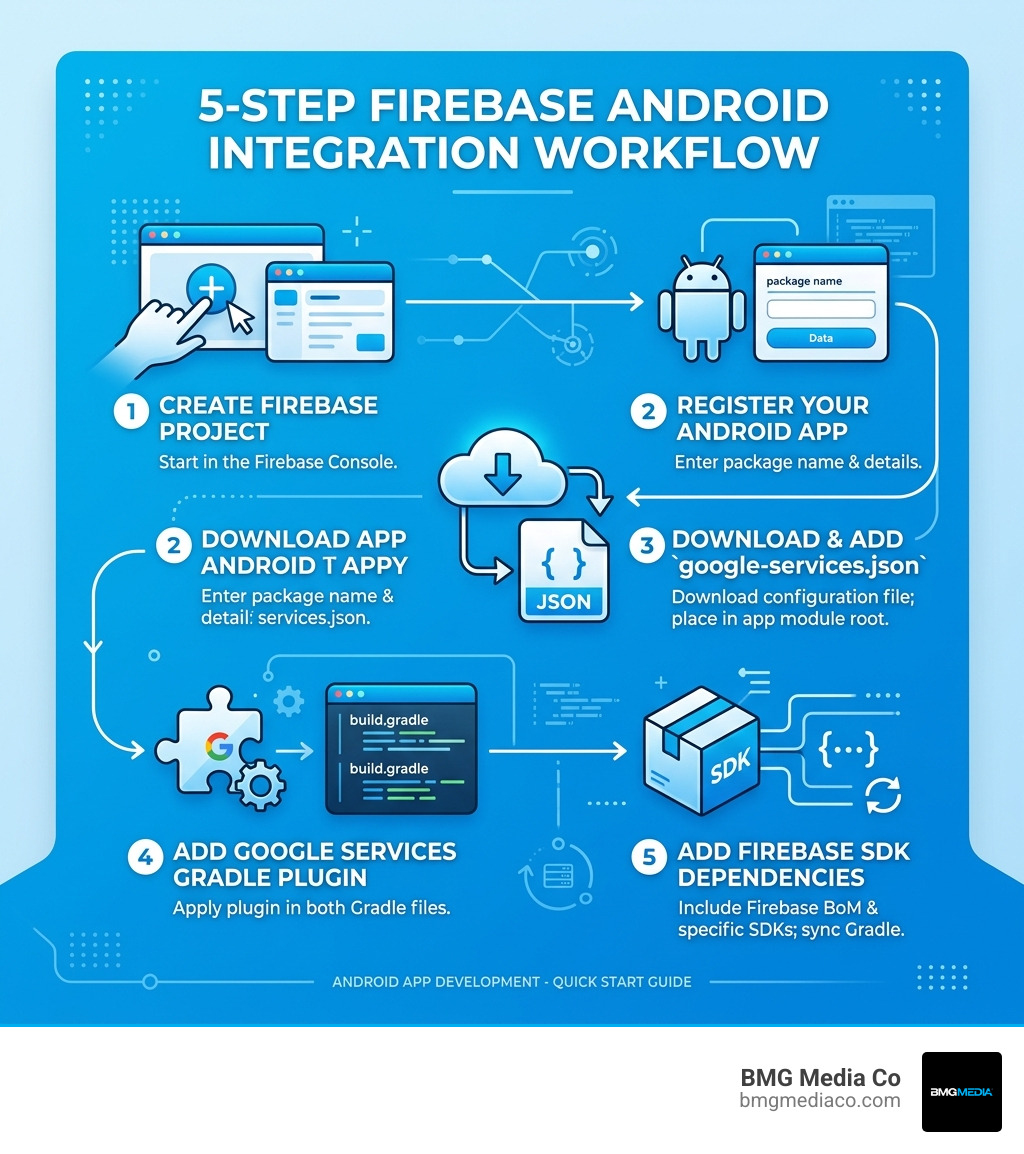
Android app firebase setup is the process of connecting your Android project to Google’s Firebase platform — giving your app instant access to a powerful backend without building one from scratch.
Here is the core process at a glance:
google-services.json and place it in your app module’s root directorybuild.gradle filesFirebase is a backend-as-a-service platform built by Google. It handles databases, authentication, analytics, crash reporting, and more — all without managing your own servers. For Android developers, it is one of the fastest ways to add production-grade features to an app.
The platform works across Android, iOS, and the web. At its core sits Google Analytics for Firebase, which powers and connects most other Firebase services.
I’m Blake George, Founder of BMG Media Co, a web and app development agency with over a decade of experience helping businesses build high-performance digital products — including android app firebase setup and full custom mobile solutions. In the sections below, I’ll walk you through every step clearly and practically so you can get Firebase running in your Android app with confidence.
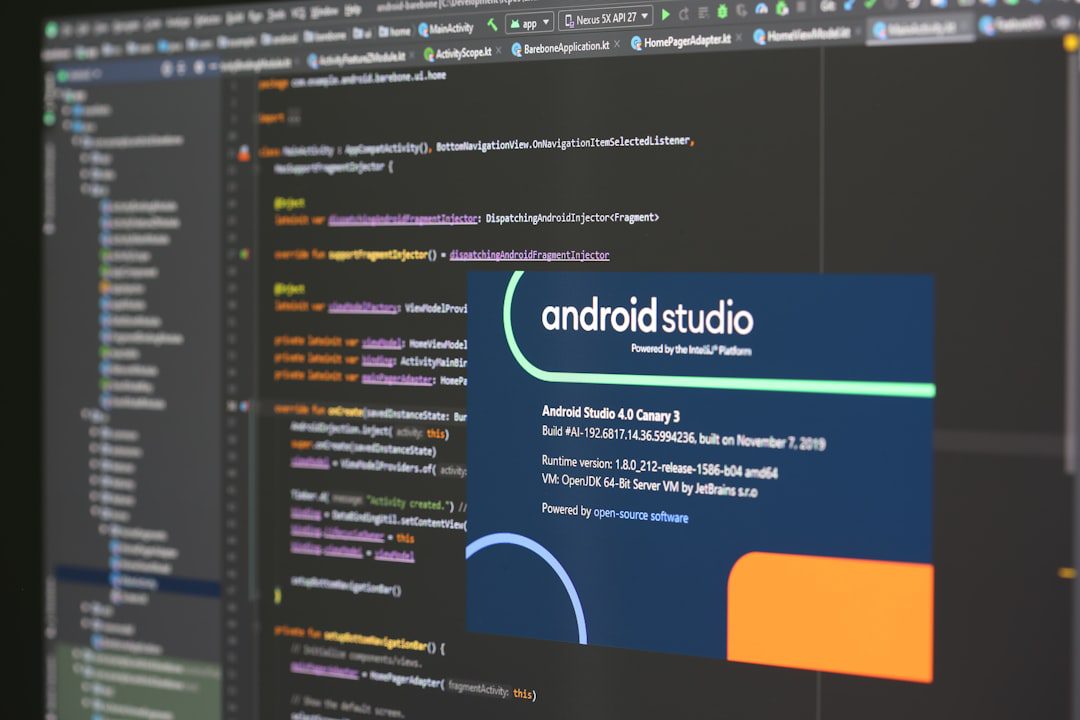
Before we start clicking buttons in the console, we need to make sure your development environment is ready. Think of this as checking your tools before starting a construction project. If your version of Android Studio is out of date or your API levels are too low, you’ll run into “mysterious” build errors later on.
As of May 2026, here are the technical requirements for a smooth android app firebase setup:
com.yourcompany.yourapp). This is case-sensitive and cannot be changed once the app is registered in Firebase, so double-check it in your app/build.gradle file.If you are just starting your journey into mobile app development for android, ensuring these prerequisites are met is the first step toward building a professional-grade application.
The Firebase Console is your mission control. This is where you’ll manage your database, view analytics, and handle user authentication.
Head over to the Firebase Console and click “Add project.” Give your project a name—ideally, one that matches your app name for easy identification. Firebase will generate a unique Project ID. Once this ID is created, it cannot be changed. You’ll also have the option to enable Google Analytics. We highly recommend keeping this enabled, as it provides the data backbone for features like Crashlytics and Remote Config.
Once your project is live, click the Android icon to start the registration wizard. You will be asked for:
applicationId in your Gradle file.Firebase will generate a google-services.json file. This file contains unique identifiers that tell the Firebase SDK which project it should talk to.
Crucial Step: You must move this file into your Android project’s module (app-level) root directory. If you put it in the project root by mistake, the build will fail because the Google Services plugin won’t be able to find it.
For a deeper dive into the official documentation, you can refer to the guide on how to Add Firebase to your Android project.
Now we need to tell Android Studio how to use that JSON file and which Firebase libraries to download. This involves editing two different build.gradle files.

In your root-level Gradle file, you need to add the Google services plugin as a dependency. This plugin is responsible for reading your google-services.json file and injecting the values into your app’s resources at build time.
plugins {
  // Add the Google services Gradle plugin
  id("com.google.gms.google-services") version "4.4.4" apply false
}
In your module-level Gradle file (usually app/build.gradle), apply the plugin and add the Firebase Bill of Materials (BoM).
plugins {
  id("com.android.application")
  // Add the Google services plugin
  id("com.google.gms.google-services")
}

dependencies {
  // Import the BoM for the Firebase platform
  implementation(platform("com.google.firebase:firebase-bom:34.12.0"))

  // Add the dependencies for the Firebase products you want to use
  implementation("com.google.firebase:firebase-analytics")
}
One of the best things about modern android app firebase setup is the Bill of Materials (BoM). In the past, developers had to manually ensure that the version of Firebase Auth they were using was compatible with their version of Firestore. It was a headache.
| Feature | Using Firebase BoM | Manual Versioning |
|---|---|---|
| Version Management | Specify one version for the BoM; others are automatic. | Must specify a version for every single library. |
| Compatibility | Guaranteed compatibility between all Firebase libraries. | High risk of “version mismatch” build errors. |
| Updates | Update one line to bump all Firebase services. | Must update every dependency line individually. |
Using the BoM is a best practice we follow for all custom software projects at BMG Media Co to ensure long-term maintainability. You can Understand Firebase for Android more deeply by exploring how these libraries interact under the hood.
When you use the BoM, you don’t need to specify version numbers for individual Firebase libraries in your dependency list. The BoM dictates the versions. However, if you ever need to use a specific version of a library that hasn’t been added to the BoM yet, you can still manually override it by specifying the version number on that specific implementation line.
After adding your dependencies, always perform a Gradle Sync. This tells Android Studio to go out and fetch the necessary files. If you see a green checkmark, you’re in business! If you’re planning to use data storage, check out how to Connect your App to Firebase | Firebase Realtime Database.
Once the core setup is complete, most developers immediately move to Analytics and Authentication.
Google Analytics is essentially the “heart” of Firebase. It tracks user behavior, but it also allows other services like Crashlytics to give you “breadcrumbs” of what a user was doing right before a crash occurred.
Firebase Authentication is a game-changer for security. Instead of building your own secure login system, you can Get Started with Firebase Authentication on Android to support Email/Password, Google, Facebook, and even Phone authentication.
If you are also considering mobile app development for ios, the beauty of Firebase is that the authentication logic remains largely consistent across platforms, making cross-platform user management much simpler.
While the manual console workflow is recommended for full control, Android Studio offers a “Firebase Assistant” found under Tools > Firebase. This tool can automate some of the Gradle changes and file placements for you. It’s a great way to quickly check if your connection is active.
For those looking to scale, linking your Firebase project to your Google Play Developer account is a power move. This integration allows:
If you need help with these high-level integrations, BMG Media Co offers custom web design and development services that bridge the gap between backend power and front-end usability.
build.gradle.app/ folder, not the root project folder.The Firebase Console is the web-based manual workflow. It gives you the most control and is the standard way to set up projects. The Android Studio Assistant is an in-IDE tool that automates the “plumbing”—it adds the dependencies and the JSON file for you. While the Assistant is faster, the Console workflow is better for understanding exactly what is being changed in your project.
This file isn’t just a list of keys; it’s a configuration map. During the build process, the Google Services Gradle plugin parses this file and creates XML resources in your app. These resources are then used by the Firebase SDK at runtime to find your specific database URL, storage bucket, and API keys. While it contains identifiers, it is generally considered safe to include in version control, as the real security is handled via Firebase Security Rules.
If you have different versions of your app (e.g., com.example.app.debug and com.example.app.release), you should register each package name as a separate “App” within the same Firebase Project. You will then download a single google-services.json file that contains the configuration for all registered variants. Alternatively, you can place variant-specific JSON files in their respective source set folders (e.g., src/debug/google-services.json).
Mastering the android app firebase setup is a rite of passage for modern Android developers. By leveraging Google’s infrastructure, you free yourself from the burden of server maintenance and security patches, allowing you to focus on what matters most: building an incredible user experience.
At BMG Media Co, we pride ourselves on building fully custom, high-performance software from our headquarters in Birmingham, Michigan. We don’t use templates; we build scalable architectures designed to grow with your business. Whether you are looking for mobile app development for android or a complete digital overhaul, our award-winning team is here to help you ignite your next project.
Ready to take your app to the next level? Let’s build something extraordinary together.

