July 2026

An ACF front end editor lets logged-in users edit Advanced Custom Fields content directly on the live page — no WordPress dashboard required. Here’s a quick overview of your main options:
| Approach | Best For | Complexity |
|---|---|---|
Native acf_form() function |
Developers who want full control | Medium |
| ACF Blocks inline editing | Gutenberg block editing | Low (with block.json) |
| Frontend Editor ACF plugin | Quick setup, no coding | Low |
| THS DreamEditor plugin | Team collaboration, real-time edits | Low |
Think about the last time you handed a finished WordPress site to a client. You built something clean and custom — no page builder bloat, no template shortcuts. Then the client asked: “How do I update this text without breaking anything?”
The honest answer for most WordPress builds is uncomfortable. You either give them admin access they don’t need, build a fragile workaround, or spend hours training them on a dashboard that was never designed for content editors.
That’s exactly the problem an ACF front end editor solves.
Advanced Custom Fields (ACF), owned by WP Engine, is one of the most widely used tools in custom WordPress development. But natively, editing those fields means navigating the backend — a poor experience for clients, content managers, and membership site users who just need to update a headline or swap an image.
Front-end editing keeps users on the page. No dashboard. No confusion. No accidental layout breaks.
Whether you’re building a membership site, a client content portal, or a headless WordPress setup, giving users a way to edit content directly on the frontend is often the difference between a site that works for the client and one that works despite them.
I’m Blake George, founder of BMG Media Co., where our team has spent over 15 years building 1,000+ fully custom WordPress sites — including complex builds that rely heavily on ACF Pro and ACF front end editor workflows to give clients intuitive, dashboard-free content management. In this guide, I’ll walk you through every approach, from native PHP functions to modern block-based inline editing, so you can choose the right solution for your build.
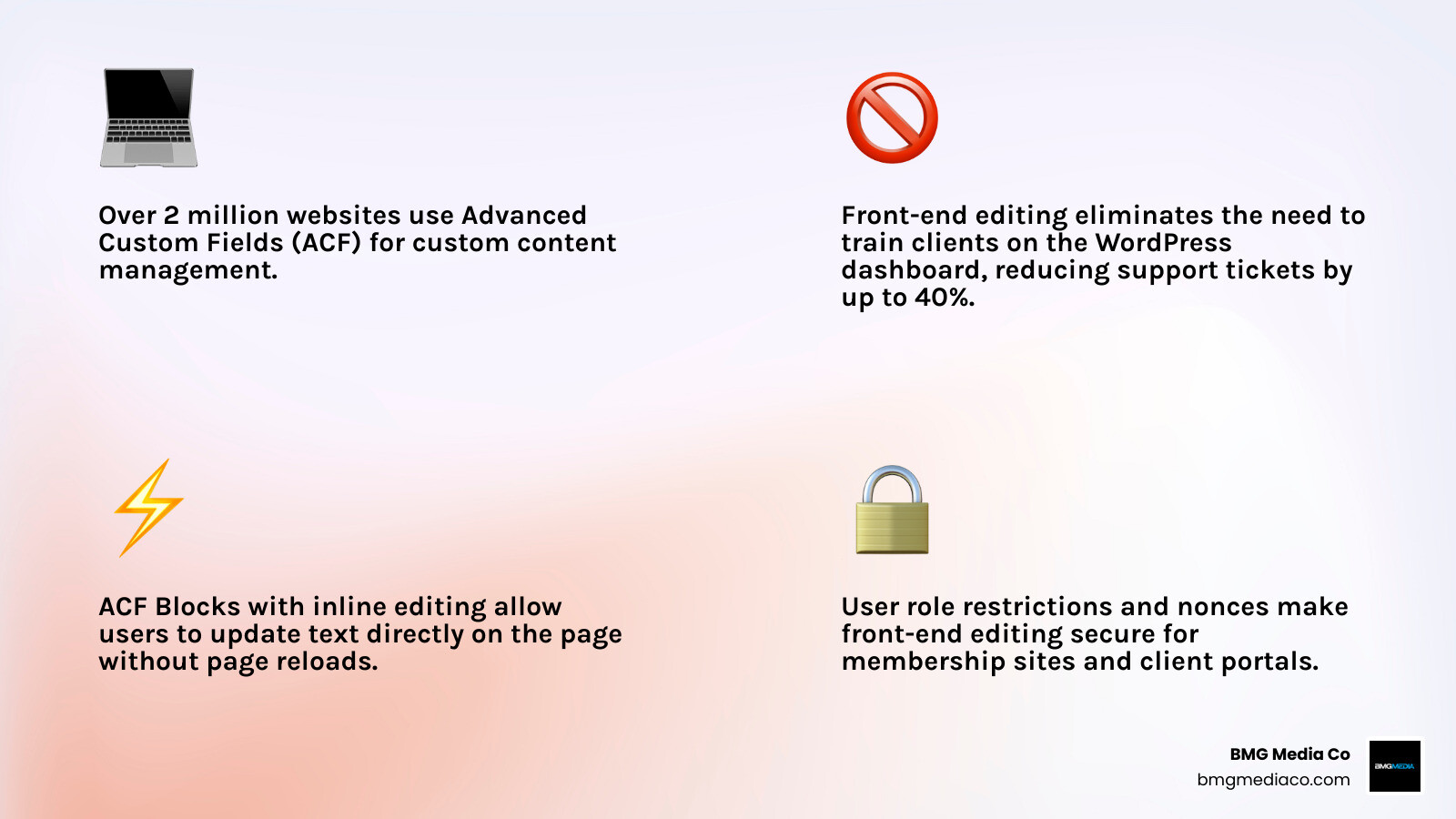
Acf front end editor terms to remember:
At its core, an acf front end editor is any interface that allows users to modify structured custom fields without accessing the standard WordPress admin panel (wp-admin). In standard WordPress development, custom fields are tied to the backend edit screen. While this is highly organized, it creates a mental disconnect for non-technical users who expect a visual, on-page editing experience.
When we hand off custom websites to clients across Metro Detroit, Chicago, New York, and Los Angeles, we often find that the standard WordPress dashboard is overwhelming for their marketing teams. An on-page editor bridges this gap. It keeps the design completely locked down so clients cannot break the layout, while still giving them full visual editing control over the actual content.
There are several scenarios where a front-end custom field editor is not just a luxury, but an absolute necessity:
To understand why this approach is superior to relying on heavy page builders, it helps to look at Why Your Business Needs a Custom CMS or Ecommerce Build. Keeping content structured in ACF fields while exposing them on the front end preserves site performance, security, and data integrity.
For developers who want complete control over the markup, styling, and behavior of their editing forms, the most robust option is programmatic implementation. ACF provides a powerful set of native PHP functions — specifically acf_form_head() and acf_form() — to handle front-end form generation, validation, and data saving.
By utilizing these native functions, you bypass the need for heavy form builder plugins, keeping your theme lightweight and fast. To display the updated content on your pages, you can reference our guide on ACF Frontend Display: A Step-by-Step Guide to Showing Your Fields.
Here is the logical sequence of how a custom programmatic front-end editor processes a user’s request:
Let’s break down the two-step process required to implement this architecture safely in your custom WordPress templates.
The first and most critical rule of using native ACF front-end forms is that you must call acf_form_head() at the absolute top of your template file. This function must execute before any HTML, whitespace, or header output is sent to the browser.
Why is this timing so strict? The acf_form_head() function is responsible for:
If you call this function after your theme’s get_header() call, you will trigger “headers already sent” PHP warnings, and your form submission and redirect logic will fail. A standard implementation begins with opening your PHP tags, calling acf_form_head(), and then calling get_header() immediately after.
Once the form header is initialized, you can render the actual form HTML inside your template file (typically within the WordPress loop) by calling the acf_form() function. This function accepts a highly customizable settings array that controls everything from which fields display to how the form behaves upon submission.
Key settings you can configure in the acf_form() array include:
By combining these parameters with custom CSS, you can seamlessly blend the ACF editing form into your site’s custom theme design, providing a polished and native-feeling user experience.
As the WordPress block editor has matured, custom block development has shifted from legacy PHP registration functions to the standardized block.json schema. Since ACF 6.0, registering custom Gutenberg blocks via block.json is the recommended standard. This modern approach unlocks powerful, visual front-end editing capabilities that rival heavy page builders without introducing code bloat.
To configure a custom block to support front-end edit capabilities, you must include an ‘acf’ configuration key inside your block.json file. For a complete guide on how to structure this metadata, you can refer to the official documentation on ACF | ACF Blocks Configuration via block.json.
Modern block development via block.json also introduces advanced SEO and performance features. For instance, ACF 6.8 introduced the autoJsonLd and schemaType properties. By setting autoJsonLd to true and defining a schemaType (such as “Recipe” or “Product”) directly in your block metadata, ACF will automatically generate Schema.org structured data from your block’s custom field values. This automates technical SEO schema generation and helps your content earn rich snippets in search results.
Additionally, the usePostMeta property (introduced in ACF 6.3.0) allows you to store block field values directly in the WordPress post meta table instead of within block comments. While this is incredibly useful for querying block data outside of the post content, keep in mind that it restricts the block to a single instance per page and disables its use in widgets or the site editor.
One of the most exciting features for content creators is inline editing, which brings a true visual editing experience directly to the block editor preview area. Instead of forcing authors to type into a sidebar panel or toggle an “Edit” mode screen, inline editing allows them to click directly on the preview text and type.
This feature is supported in modern versions of ACF Blocks (specifically Blocks Version 3). To enable this seamless authoring experience, you simply add autoInlineEditing set to true within the ‘acf’ object of your block.json file. For a detailed breakdown of how this functions, see ACF | Inline Editing for ACF Blocks.
Under the hood, inline editing categorized into two main styles:
While simple text and image fields translate beautifully to inline visual editing, complex and layout-heavy fields like Repeaters, Flexible Content, and Clones present a significant UI challenge on the front end. Forcing these deeply nested fields into a narrow sidebar or inline preview often results in a cramped, frustrating editing experience.
To solve this, ACF 6.6 introduced the Expanded Editing Panel. This feature replaces the legacy “Edit” mode toggle. When an author needs to manage complex layout fields, they can click a button to open a spacious, dedicated editing panel that slides out, providing ample room to rearrange repeater rows, add flexible content layouts, and edit sub-fields.
For developers seeking lightweight, code-level inline editing for flexible layouts in legacy or custom PHP templates, community solutions also exist. For example, the kmcaloon/acf-frontend-editor GitHub repository — a developer-focused fork of Elliot Condon’s original Live Edit plugin — enables live editing for individual flexible content layouts. By using a custom live_edit() helper function and prefixing layout names with ‘flex-‘ (e.g., flex-layout_name--field_name), developers can target and expose specific nested fields for front-end editing directly in their theme templates.
The WYSIWYG (What You See Is What You Get) editor is one of ACF’s most popular field types, but it is also one of the heaviest. Under the hood, the WYSIWYG field relies on the legacy TinyMCE library and WordPress’s native media APIs. You can view the underlying PHP architecture of this field in the official source code at includes/fields/class-acf-field-wysiwyg.php at master · AdvancedCustomFields/acf.
Because TinyMCE is resource-intensive, loading multiple WYSIWYG editors on a single page can severely degrade backend and frontend performance. To optimize loading speeds, we highly recommend enabling the “Delay Initialization” setting on your WYSIWYG fields. This prevents TinyMCE from loading until the user actually clicks on the field, saving significant browser rendering overhead.
Furthermore, ACF explicitly recommends against using WYSIWYG fields inside custom ACF Blocks due to rendering and performance conflicts within the Gutenberg editor interface. Instead, developers should use simpler text fields or native block elements.
If you have built custom ACF Blocks containing WYSIWYG fields, you or your clients may have encountered a highly disruptive bug. Since the release of WordPress 6.7, a known compatibility issue (tracked on GitHub as Text cursor jumps to ACF WYSIWYG field upon hitting enter key · Issue #946 · AdvancedCustomFields/acf) causes the text cursor to violently jump to the last WYSIWYG field on the page whenever a user hits the “Enter” key inside the block editor.
This bug is caused by a conflict between Gutenberg’s modern iframe isolation architecture and legacy jQuery/TinyMCE libraries initializing inside the block’s edit mode. Because WordPress core is moving toward rendering blocks in isolated iframes, legacy scripts struggle to attach event listeners correctly.
To resolve or mitigate this issue, you can take the following steps:
InnerBlocks. This allows you to nest native Gutenberg paragraph, heading, and list blocks inside your custom block structure, ensuring future-proof compatibility and a native editing experience.When implementing an acf front end editor, you must decide whether to write a custom-coded solution using acf_form() or utilize a pre-built third-party plugin. The right choice depends on your project’s budget, timeline, and required level of customization.
To help you decide, here is a direct comparison of the two approaches:
| Feature | Custom Code (acf_form()) |
Pre-Built Plugins |
|---|---|---|
| Development Cost | Higher upfront developer hours | Lower upfront cost (plugin licensing) |
| Performance | Extremely lightweight; zero bloat | Variable; depends on plugin architecture |
| Styling Control | 100% customizable to match your theme | Limited to plugin settings or custom CSS overrides |
| Maintenance | Low; relies on native, stable ACF APIs | Requires regular updates to maintain compatibility |
| Security | Developer-managed validation and nonces | Out-of-the-box role and permission settings |
If you decide that a custom plugin is the best way to package your front-end editing logic, you can read our Beginners Guide to Custom Plugins or dive deeper with WordPress Plugin Development From Zero to Hero in Five Steps.
If your workflow or timeline favors an out-of-the-box plugin, two notable options stand out in the WordPress ecosystem:
Exposing database-writing forms on the public-facing side of your website introduces significant security risks. If left unsecured, malicious actors could exploit your forms to inject spam, modify site content, or gain unauthorized access to your database.
When building a custom acf front end editor, you must implement strict security protocols:
current_user_can() function.acf_form(), but if you are building custom AJAX submission handlers, you must generate and verify secure WordPress nonces for every request.sanitize_text_field() or wp_kses_post() for rich text. When displaying the saved custom fields on the front end, always escape the output using esc_html(), esc_attr(), or wp_kses() to prevent Cross-Site Scripting (XSS) attacks.For a deeper look at balancing user convenience with robust security and privacy, check out our guide on Professional WordPress Customization for People Who Hate Cookies.
Yes. By setting the 'post_id' parameter to 'new_post' inside your acf_form() settings array, the form will generate a new post upon submission rather than editing an existing one. You can use the 'new_post' configuration array to predefine the default post status (e.g., ‘draft’ or ‘pending’ for moderation), the post type, and even assign a default category. This is the standard method for building secure front-end user submission portals, such as directory listings or guest blogging systems.
You can restrict access by wrapping your acf_form() rendering logic in a PHP conditional statement that checks the current user’s capabilities. For example, using current_user_can('edit_posts') ensures that only logged-in users with editing privileges can see or submit the form. If a user does not meet the requirements, you can display a friendly access-denied message or redirect them to a login page.
No, deeply nested or layout-heavy fields like Repeaters, Flexible Content, and Clones are not directly editable inline within the block preview area. However, starting in ACF 6.6, these complex fields can be managed seamlessly using the slide-out Expanded Editing Panel, which provides a spacious and intuitive user interface for managing sub-fields and rearranging rows without cluttering the sidebar.
Building an acf front end editor is the ultimate way to deliver a visual, intuitive editing experience for your clients without resorting to bloated page builders. Whether you implement a custom programmatic solution using acf_form(), leverage modern inline editing in ACF Blocks, or utilize a lightweight utility plugin, keeping your content structured in Advanced Custom Fields ensures your website remains fast, secure, and easy to maintain.
At BMG Media Co., we don’t believe in shortcuts. We build every single website 100% custom from scratch — no templates, no page builder bloat, and no compromises. Headquartered in Birmingham, Michigan, and serving clients in Detroit, Chicago, Austin, Houston, New York, and across the globe, we specialize in high-performance custom WordPress development, API integrations, and enterprise-grade custom software.
If you are ready to build a fast, secure, and bespoke digital experience tailored to your business goals, explore our Custom Software Services and contact us today to kickstart your next project.

