June 2026

To build Azure web app instances quickly, follow these core steps:
Your web app will be live at https://.azurewebsites.net.
Running a business in 2026 means your website has to do more than look good. It needs to perform under pressure, scale when traffic spikes, and stay secure without requiring a dedicated IT team.
That is exactly where Microsoft Azure App Service comes in.
Azure App Service is a fully managed platform — meaning Microsoft handles the servers, operating system patches, and infrastructure. You focus on building your product. It supports popular languages like Python, .NET, Java, PHP, Node.js, and Ruby, and it runs on both Windows and Linux.
The numbers back it up. Microsoft has 34,000 full-time security engineers protecting the platform, and Azure holds over 100 compliance certifications — more than 50 of which apply to specific global regions. For businesses in healthcare, real estate, or manufacturing, that kind of trust matters.
Whether you are migrating an outdated website or launching a brand-new application, Azure gives you a production-ready environment in minutes — not weeks.
I’m Blake George, founder of BMG Media Co, a web design and development agency that has built over 1,000 custom digital platforms for businesses across industries where performance and reliability are non-negotiable. My team regularly works with cloud infrastructure — including helping clients build Azure web app solutions — to deliver fast, scalable, and secure web experiences that actually drive growth.
In this guide, we will walk through everything you need to get started — from setup and deployment to scaling and security.
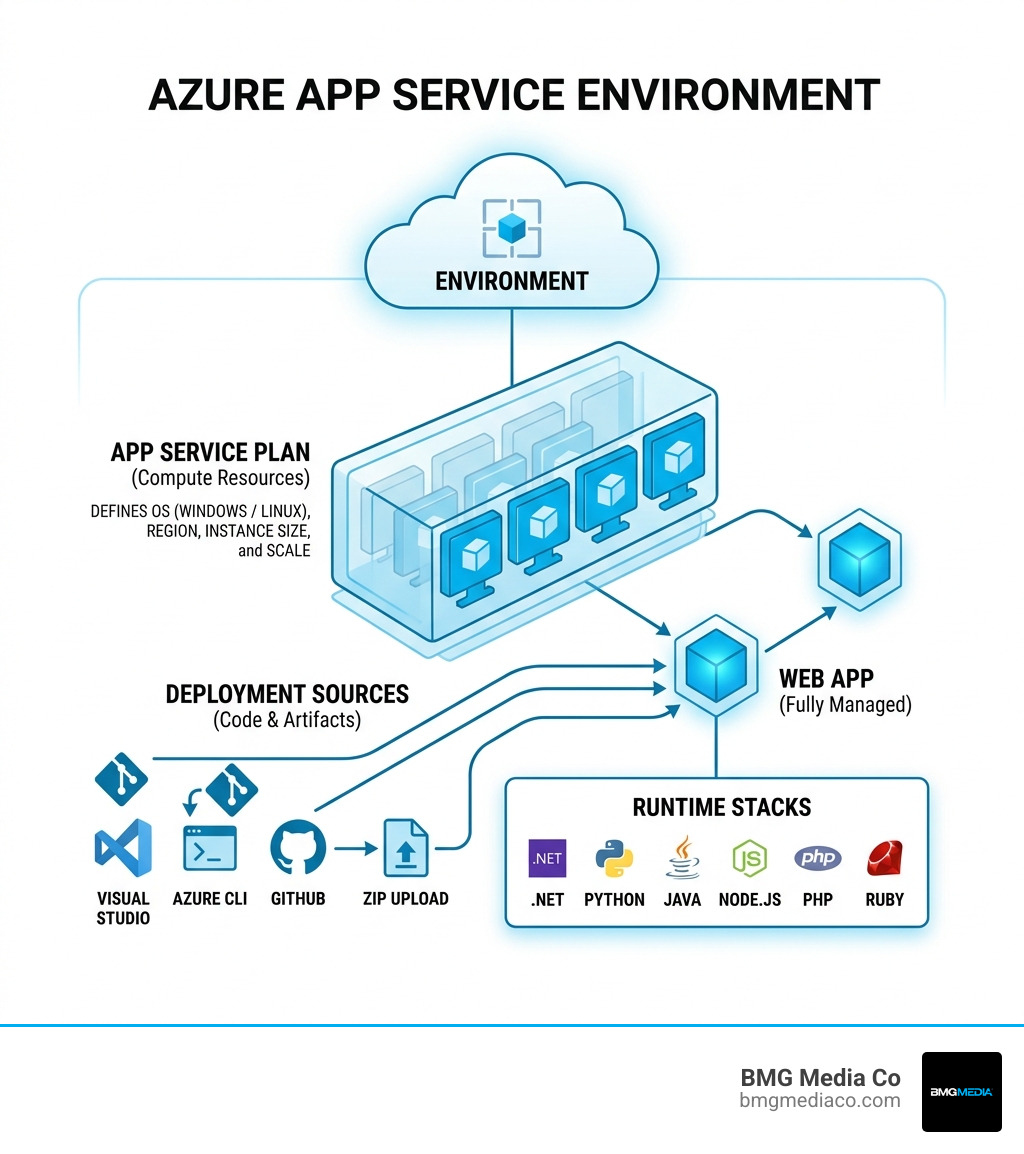
Relevant articles related to build azure web app:
Before we dive into the portal and start clicking buttons, we need to talk about the foundation. You wouldn’t build a house without a blueprint, and you shouldn’t build Azure web app instances without understanding the underlying structure.
First, you need an active Azure subscription. If you’re just starting out, Microsoft often offers free credits or a 30-day trial. For our nonprofit friends, there is even a $3,500 annual credit available to help host your mission-critical applications.
Once your account is ready, we need to look at three key components:
Think of a Resource Group as a logical container. We use these to group all the “stuff” related to a specific project—your web app, your database, and your storage accounts. This makes it incredibly easy to manage permissions and, more importantly, delete everything at once when a project is finished so you don’t get hit with unexpected bills.
This is the most critical prerequisite. An App Service Plan represents the physical resources (CPU, RAM, and storage) that will run your app. You cannot have a web app without a plan. It’s the “engine” under the hood. When you choose a plan, you are deciding whether your app runs on a shared “Free” server or a dedicated “Premium” powerhouse. You can learn more about the platform’s capabilities at the official Web App Service | Microsoft Azure page.
Azure is incredibly flexible. We can host apps built in .NET, Java, Node.js, PHP, Python, or Ruby. You also have to choose between Windows and Linux. While many stacks like .NET Core and Node.js run great on both, some legacy .NET Framework apps require Windows, while certain Python or Ruby configurations feel more at home on Linux.
When choosing your region, always pick the one closest to your customers. If your business is based in Birmingham, Michigan, selecting a “US East” or “US Central” region ensures the lowest possible latency for your local users. This kind of planning is essential when developing custom software that needs to perform at an elite level.
Ready to get your hands dirty? The Azure Portal is the most common way to get started. It’s visual, intuitive, and guides you through the process. According to Microsoft training data, it takes about 31 minutes to complete the basic module to host a web application with Azure App Service—but we’re going to break it down even faster for you.
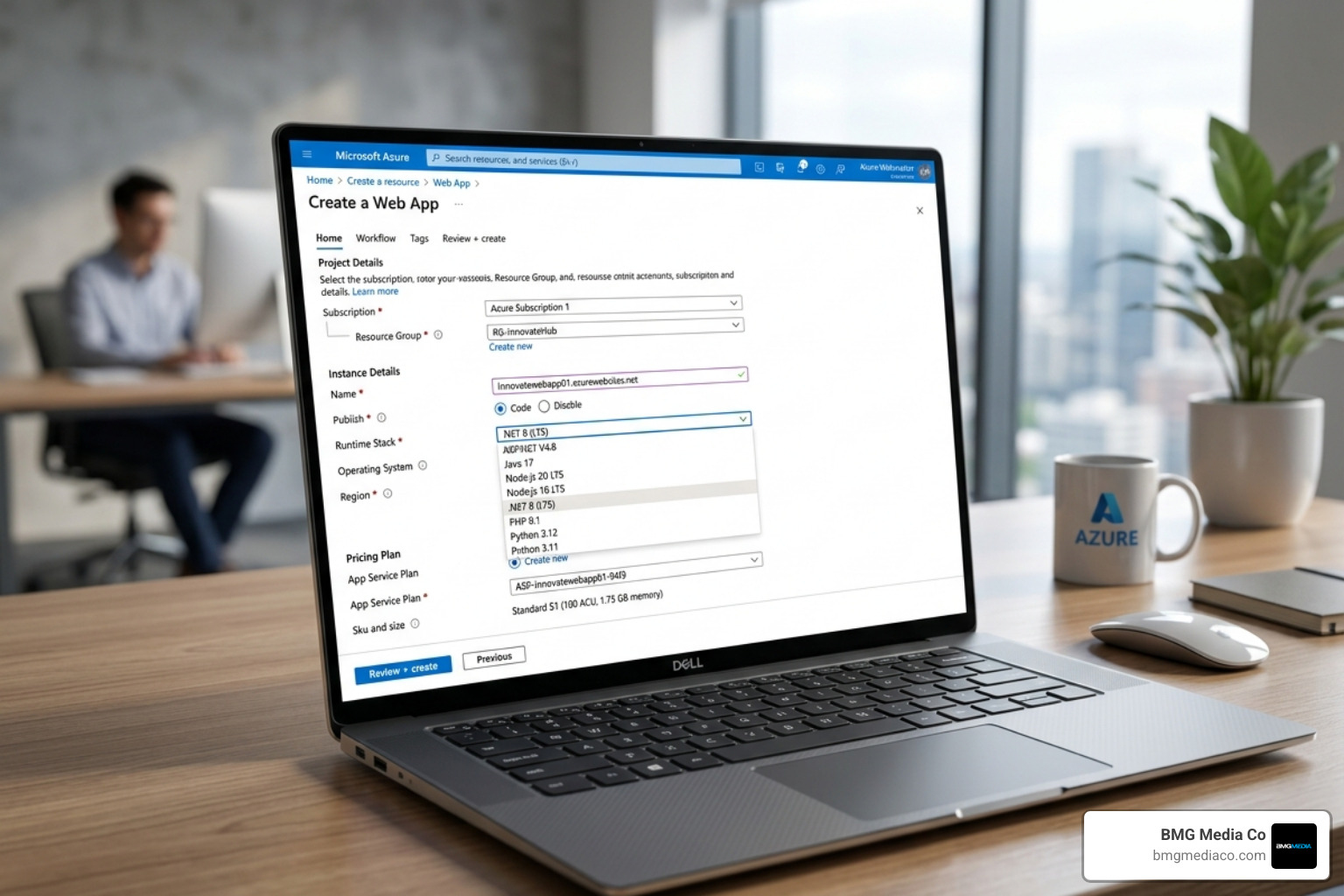
After clicking “Create a Resource” and searching for “Web App,” you’ll land on the Basics tab.
appname.azurewebsites.net.This is where you decide your budget. Here is a quick look at how the tiers break down:
| Tier | Best For | Key Features |
|---|---|---|
| Free (F1) | Learning & Testing | 60 CPU minutes/day, No custom domains |
| Basic (B1-B3) | Low-traffic apps | Custom domains, SSL support, Manual scaling |
| Premium (P1-P3) | Production workloads | High performance, Autoscaling, Staging slots |
For a deep dive into getting your first .NET app live, check out the Quickstart: Deploy an ASP.NET web app guide.
Once you’ve navigated through the Networking and Monitoring tabs (where we usually recommend keeping “Application Insights” enabled for better debugging), hit “Review + Create.” Azure will validate your settings, and within about a minute of clicking “Create,” your infrastructure will be ready.
Building the “container” is only half the battle; now you need to get your code into it. Azure offers several ways to do this, depending on your comfort level with developer tools.
If you are a developer, this is the “gold standard.” In Visual Studio, you can literally right-click your project and select “Publish.” It connects directly to your Azure account and handles the heavy lifting. VS Code users can use the Azure App Service extension to zip up their workspace and push it to the cloud with a few clicks. This is a favorite for those working on JavaScript development projects.
Sometimes, you just want to upload a package. You can create a ZIP file of your project and use the Azure CLI or the KUDU console to deploy it. A major benefit here is that the app runs directly from the package, which avoids “file in use” errors during updates. You can read the technical details on how to Run Your App from a ZIP Package to see if it fits your workflow.
Every Azure Web App comes with a “secret” backend called KUDU. You access it by adding .scm to your app URL (e.g., appname.scm.azurewebsites.net). It provides a command-line interface, a file explorer, and diagnostic tools. It’s a lifesaver when you need to quickly rename a file (like changing hostingstart.html to index.html) or check log files.
For those who prefer a more traditional approach, Azure still supports FTP/S, though we generally recommend more modern methods for better security and version control. You can find more details on these workflows in the guide on Publishing to an Azure Web App with Continuous Deployment.
If you want to act like a pro, you shouldn’t be manually uploading files. You should use Continuous Integration and Continuous Deployment (CI/CD). This means every time you “push” code to a repository like GitHub or Azure DevOps, Azure automatically builds and deploys the update.
This automated approach is perfect for complex Python web development where environment consistency is key. You can find the full setup steps in the Configure continuous deployment documentation.
Security isn’t a “nice-to-have”—it’s a requirement. With 34,000 security engineers at Microsoft working in the background, you’re off to a good start, but there are things you must do on your end:
Whether you’re building simple Flask web apps or massive enterprise portals, these steps ensure you stay compliant with the 100+ certifications Azure maintains globally.
One of the best reasons to build Azure web app instances is the ability to grow on demand. We categorize this into two types: Vertical and Horizontal scaling.
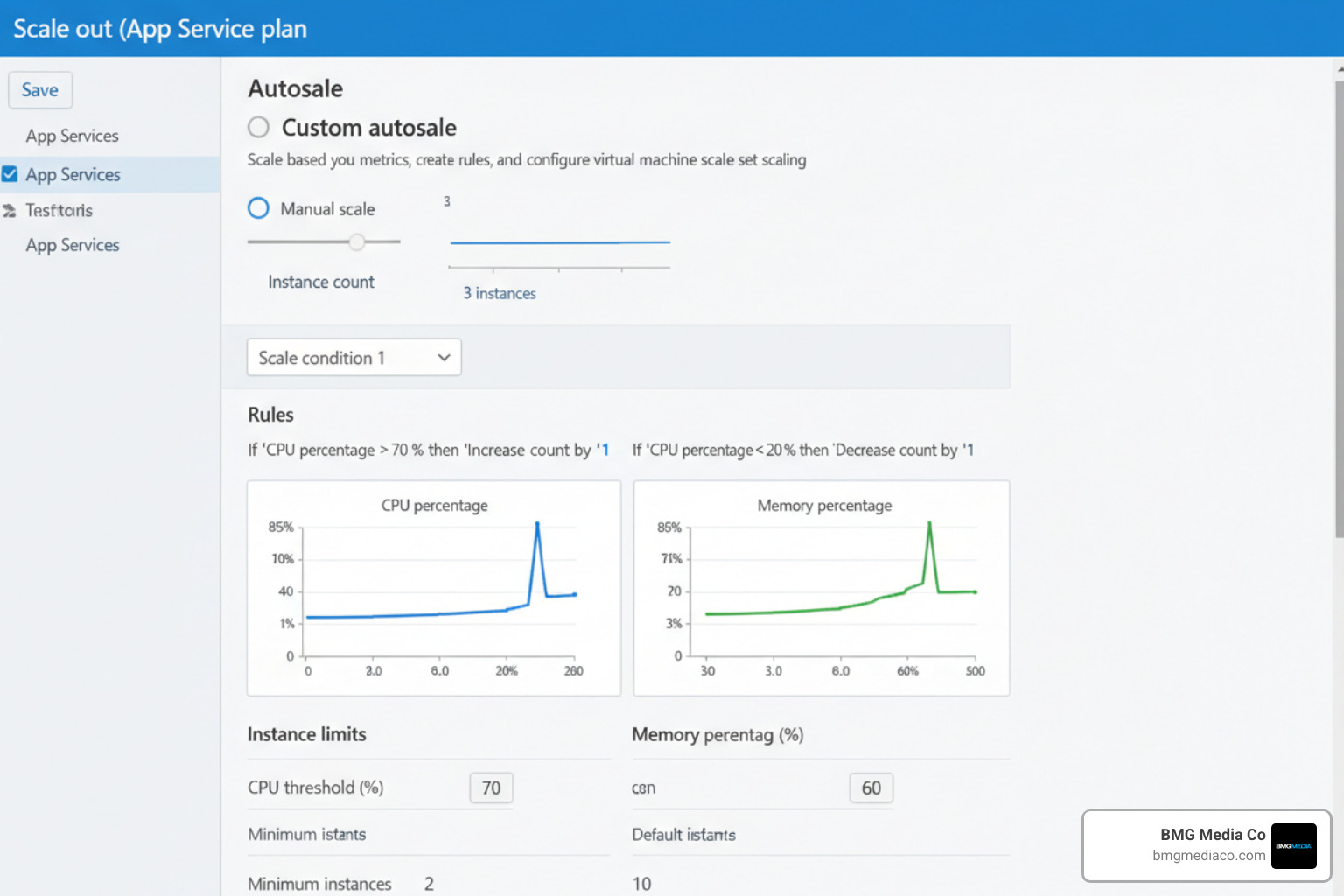
Scaling up means moving to a bigger machine. If your app is running slowly because it needs more RAM or a faster CPU, you simply change your App Service Plan from “Basic” to “Premium.” It takes about a minute, and your app gets an immediate performance boost.
Scaling out means adding more machines. Instead of one big server, you might have five medium servers. With “Autoscale,” Azure can automatically add more instances when your CPU usage hits 70% and remove them when traffic dies down. This saves you money while ensuring your site never crashes during a big sale or marketing push.
You can’t fix what you can’t see. Application Insights provides a real-time “map” of your application. It shows you:
Microsoft provides a 99.95% SLA (Service Level Agreement) for most tiers, but keeping an eye on your own metrics is what separates a good app from a great one. This level of oversight is a standard part of our web design services at BMG Media Co.
An App Service Plan is the “server farm” where your app lives. It defines the compute resources, storage, and features (like scaling and slots) available to your web app. You can host multiple web apps on a single plan to save money, but they will all share the same resources.
Once you move to a “Basic” tier or higher, you can go to the “Custom Domains” blade in the portal. You’ll need to add a CNAME record at your domain registrar (like GoDaddy) pointing to your .azurewebsites.net address. Azure also offers free managed SSL certificates, so you can get that “Padlock” icon in the browser without paying extra.
The “Diagnose and solve problems” tool in the Azure Portal is your best friend. It runs automated checks on your app’s health and suggests fixes for common issues like 5xx errors or high memory usage. For deeper dives, Application Insights provides end-to-end transaction tracing.
Building in the cloud doesn’t have to be intimidating. By choosing to build Azure web app solutions, you are leveraging the same world-class infrastructure used by the biggest brands on the planet. From the initial 31-minute setup to advanced CI/CD pipelines and global scaling, Azure provides a roadmap for success that grows with your business.
At BMG Media Co, we believe in a “no templates” approach. We build custom, high-performance web applications that are designed to dominate your market. Based right here in Birmingham, Michigan, our award-winning team has completed over 1,000 projects, helping businesses transform their digital presence.
If you’re ready to stop stressing about infrastructure and start building something amazing, we’re here to help. Whether you need a complex enterprise platform or a high-converting custom site, our experts can guide you through every step of the Microsoft Azure ecosystem.
Explore our custom web design and development services today and let’s build the future of your business together.
