July 2026

If you want to build web apps with React & Firebase, here is the core process at a glance:
React and Firebase have quietly become one of the most dominant stacks in modern web development. React powers roughly 39.5% of developer projects worldwide, and Firebase’s core package pulls in over 20 million downloads every week. That is not a trend — that is a standard.
The appeal is straightforward. React gives you a fast, component-based frontend. Firebase gives you a fully managed backend — real-time database, authentication, file storage, hosting, and serverless functions — all without spinning up a single server. Together, they let small teams ship production-grade apps at a speed that would have been impossible a few years ago.
But getting the integration right takes more than just installing packages. There are real decisions to make around project structure, security rules, state management, and deployment — and the wrong choices early on create technical debt fast.
This guide walks you through all of it, step by step.
I’m Blake George, founder of BMG Media Co., with over 15 years of experience leading custom web and application development projects — including apps built on modern JavaScript stacks like React and Firebase. My team at BMG has helped businesses across industries build web apps with React & Firebase and other cutting-edge technologies that scale with their growth.
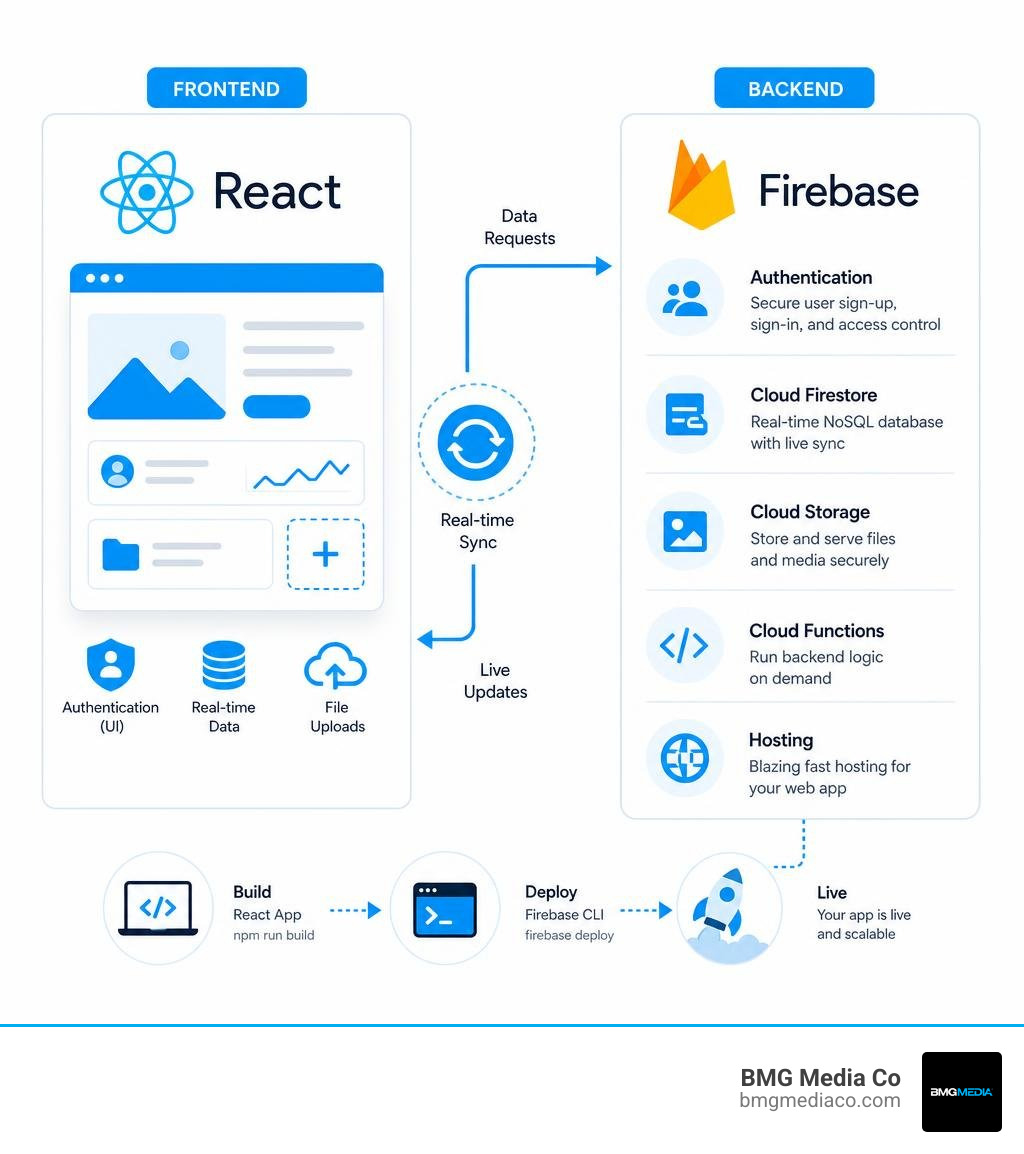
Build web apps with react & firebase terminology:
When we build web applications in July 2026, client expectations are higher than ever. Users demand instant updates, seamless offline experiences, and ironclad security. To deliver on these demands without spending months configuring database clusters and API endpoints, developers rely on the synergy between React and Firebase.
React excels at managing the user interface. Its declarative component model makes it easy to build dynamic, interactive UIs that respond instantly to state changes. By using ReactJS technology, we can break complex designs into manageable, reusable blocks of code.
Firebase, on the other hand, acts as a Backend-as-a-Service (BaaS). Instead of writing a custom Node.js, Python, or Ruby backend, Firebase gives you a suite of cloud-based tools that handle the heavy lifting. The Firebase SDK exposes simple client-side APIs that communicate directly with Google Cloud’s secure infrastructure. This setup eliminates the need for middleman API servers for standard CRUD (Create, Read, Update, Delete) operations, accelerating your development lifecycle.
Combining these two technologies brings several key advantages to the table:
By leveraging these benefits, you can transition from zero to hero and build web applications that actually work under heavy real-world demands.
To begin, you will need a local development environment with Node.js installed. In 2026, Vite has become the undisputed standard for scaffolding React applications, replacing the deprecated Create React App. Vite provides lightning-fast build times and a superior developer experience.
Open your terminal and run npm create vite@latest my-firebase-app -- --template react to initialize a clean React project. Navigate into your new directory with cd my-firebase-app and install the initial dependencies using npm install.
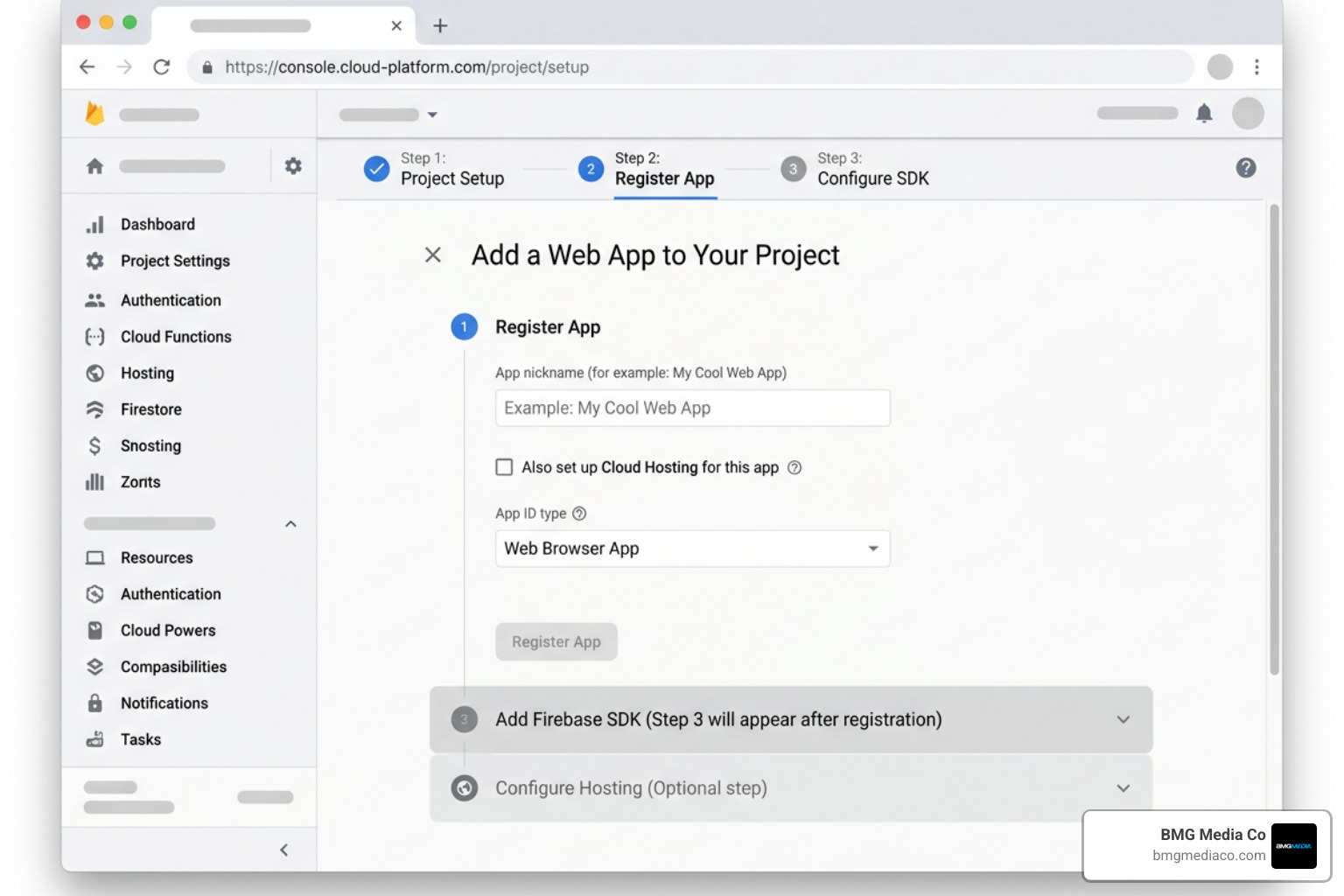
With your local React project ready, it is time to configure your backend. Head over to the Firebase Console, sign in with your Google account, and click “Add Project.” Give your project a name, choose whether to enable Google Analytics, and click “Create Project.” Once the project is initialized, click the Web icon (represented by the symbol) on the project overview page to register your web application. Firebase will generate a configuration object containing your unique API keys and identifiers.
Before writing code, install the official Firebase JavaScript SDK in your React project by running npm install firebase. This package contains all the modules required to interact with Firebase services. For a deeper dive into initializing your frontend environment, check out our guide on how to start building a web app with JavaScript.
Now we need to initialize Firebase within our React codebase. The best practice is to isolate your Firebase configuration and service initializations in a single file, typically located at src/firebase.js or src/services/firebase.js.
Create a file named firebase.js inside your src directory. Inside this file, import initializeApp from firebase/app, along with the specific service getters you plan to use, such as getAuth from firebase/auth, getFirestore from firebase/firestore, and getStorage from firebase/storage.
Define a firebaseConfig object using environment variables to keep your keys secure. Use import.meta.env.VITE_FIREBASE_API_KEY and similar Vite-specific environment variables to populate fields like apiKey, authDomain, projectId, storageBucket, messagingSenderId, and appId.
Initialize the core app by calling const app = initializeApp(firebaseConfig);. Then, export the initialized services:
export const auth = getAuth(app);export const db = getFirestore(app);export const storage = getStorage(app);When integrating Firebase with React, you have two primary architectural paths: using the official, imperative Firebase JS SDK directly, or using ReactFire, a popular library that provides declarative React hooks for Firebase.
| Feature / Comparison | Firebase JS SDK | ReactFire Library |
|---|---|---|
| Programming Style | Imperative (SDK-driven) | Declarative (Hooks-driven) |
| State Management | Manual (requires useState and useEffect) |
Automatic (built-in state and caching) |
| React Suspense Support | No | Yes (native integration) |
| Learning Curve | Low (standard JavaScript) | Moderate (requires understanding RxJS/Context) |
| Bundle Size | Smaller (only import what you use) | Slightly larger (adds wrapper library) |
If you prefer a highly integrated, hooks-first approach that leverages React’s modern Suspense features, you can explore the ReactFire quickstart guide to set up your providers.
User authentication is the cornerstone of almost every modern web application. Firebase Authentication simplifies this by managing user accounts, secure sign-ins, session persistence, and password resets out of the box.
To enable authentication, navigate to your Firebase Console, select “Authentication” from the build menu, and click “Get Started.” Under the “Sign-in method” tab, enable the “Email/Password” provider. You can also enable third-party providers like Google or GitHub here. For a detailed look at combining authentication with modern UI frameworks, you can reference this walkthrough on how to create a React app with Firebase Auth, Cloud Firestore, and Tailwind.
To manage the authentication state cleanly across your entire React application, we use the React Context API. This pattern avoids “prop drilling” by making the user’s authentication state accessible to any component in the render tree.
Start by creating a file named AuthContext.jsx inside a src/context directory. Inside this file, import createContext, useContext, useEffect, and useState from react. You will also need to import the auth instance you exported from your firebase.js config file, along with Firebase Auth functions like onAuthStateChanged, signInWithEmailAndPassword, createUserWithEmailAndPassword, and signOut.
Define AuthContext using createContext(). Next, build an AuthProvider component. Inside this component, define a user state variable initialized to null, and a loading state variable set to true.
Within a useEffect hook, subscribe to the user’s sign-in state using onAuthStateChanged(auth, (currentUser) => { ... }). This listener runs automatically whenever the user’s authentication state changes (e.g., on login, sign-out, or page refresh). Inside the callback, set the user state to the currentUser object and set loading to false. Crucially, return the unsubscribe function from your useEffect to clean up the listener when the provider unmounts.
The AuthProvider should render AuthContext.Provider passing a value object containing the user state, along with wrapper functions for signing up (createUserWithEmailAndPassword), signing in (signInWithEmailAndPassword), and signing out (signOut).
To make consuming this context effortless, export a custom hook named useAuth that simply returns useContext(AuthContext).
To protect sensitive pages (like a user dashboard) from unauthenticated access, build a ProtectedRoute component. This component calls useAuth(). If loading is true, it displays a loading spinner. If user is null, it uses React Router’s Navigate component to redirect the visitor to the login page. Otherwise, it renders the children components. Wrap your private routes with this component in your App router configuration to secure your application’s views.
Cloud Firestore is a flexible, scalable NoSQL cloud database designed to store and sync data for client- and server-side development. Firestore structures data into documents, which are stored in collections. Documents contain key-value pairs and can support nested subcollections.
To use Firestore, go to the Firebase Console, select “Firestore Database,” and click “Create Database.” Choose a location close to your primary user base, start in “Production Mode” (which secures your data by default), and click create. For detailed documentation on advanced Firestore hooks and data fetching patterns, you can check out the ReactFire use guide.

Interacting with Firestore in React involves using the Firestore SDK functions. Let’s look at how to perform basic CRUD operations and handle real-time data streaming.
To write a document to a collection, import collection and addDoc from firebase/firestore, along with your initialized db instance. When a user submits a form, call await addDoc(collection(db, "tasks"), { title: taskTitle, completed: false, createdAt: new Date() }); inside a try-catch block to handle any network or permission errors.
To read data once, you can use getDocs. However, the real power of Firestore lies in real-time updates. To subscribe to a collection’s changes live, use the onSnapshot listener.
Inside a custom React hook or a useEffect block, define a query using the query and collection functions. Pass this query to onSnapshot. The onSnapshot function takes a callback that fires whenever the database updates:
const unsubscribe = onSnapshot(q, (querySnapshot) => {
const items = [];
querySnapshot.forEach((doc) => {
items.push({ id: doc.id, ...doc.data() });
});
setTasks(items);
});
Always return the unsubscribe function from your useEffect clean-up block to prevent memory leaks and unnecessary database read charges. This real-time stream feeds directly into your React state, creating a highly responsive, data-driven UI that updates instantly for all active users.
Modern web applications frequently require users to upload files, such as profile pictures, documents, or media assets. Firebase Storage provides a robust, secure bucket system built to handle massive file transfers.
To upload a file, import ref, uploadBytes, and getDownloadURL from firebase/storage along with your storage instance. When a user selects a file via an element, create a storage reference pointing to the desired path: const storageRef = ref(storage, 'avatars/' + user.uid);. Upload the file using await uploadBytes(storageRef, file);, then retrieve its public URL by calling const downloadURL = await getDownloadURL(storageRef);. You can then save this URL to the user’s profile in Firestore.
When your application is complete, you need to deploy it to production. Firebase Hosting provides fast, secure hosting for your static assets, backed by a global CDN. To deploy your application, follow these steps:
npm install -g firebase-tools in your terminal.firebase login.firebase init. Select “Hosting” from the interactive menu.dist (if using Vite) or build (if using Create React App).index.html.npm run build to generate your optimized production assets.firebase deploy.Your app will be live on a secure Firebase subdomain (e.g., your-app.web.app). You can easily connect a custom domain through the Firebase Console’s hosting panel. For more strategies on launching highly optimized web experiences, review our no-nonsense guide to high-performance web launches.
To keep your application fast, secure, and maintainable as it grows, implement these industry-standard best practices:
.env.local file. Ensure this file is added to your .gitignore so your keys are never committed to public repositories.Security in a React and Firebase app is enforced on the backend via Firebase Security Rules. Because anyone can inspect frontend JavaScript code, you cannot rely on React to protect your data.
You must write Firestore and Storage security rules in the Firebase Console. These rules intercept every request and check if the requesting user (request.auth) matches the owner of the document or has the appropriate custom claims. Additionally, you should restrict your Firebase API keys in the Google Cloud Console to only accept requests from your authorized domain names.
Yes, you can use Firebase with server-side frameworks like Next.js. While the standard Firebase client SDK is designed for client-side execution, you can use the Firebase Admin SDK on the server side to verify session cookies, fetch data during server-side rendering, and secure API routes. This hybrid approach allows you to deliver fast initial page loads and optimized SEO while maintaining real-time client-side synchronization.
Firebase operates on a generous free tier called the Spark Plan, which is perfect for development and low-traffic applications. Once your app grows, you must transition to the Blaze Plan, which is a pay-as-you-go model.
The primary cost drivers in a production app are Firestore read/write operations and Cloud Storage bandwidth. To optimize costs, implement local caching, avoid unnecessary database listeners, and design your data structures to minimize the number of document reads required per page load.
When you build web apps with React & Firebase, you unlock a modern development workflow that pairs a reactive frontend with a serverless, highly scalable backend. From seamless authentication to real-time database subscriptions and instant file hosting, this stack gives you the tools to turn complex ideas into functional, production-ready web applications.
While Firebase makes getting started simple, building complex, enterprise-ready platforms requires deep architectural expertise. At BMG Media Co., we specialize in creating 100% custom, hand-crafted web applications and digital experiences from scratch. Headquartered in Birmingham, Michigan, our expert team has delivered over 1,000 successful projects for clients across Metro Detroit and nationwide, from Chicago and New York to Austin and Los Angeles.
If you are ready to build a high-performance web application tailored to your business goals, explore our custom web design and development services and let’s discuss your project today.
