June 2026
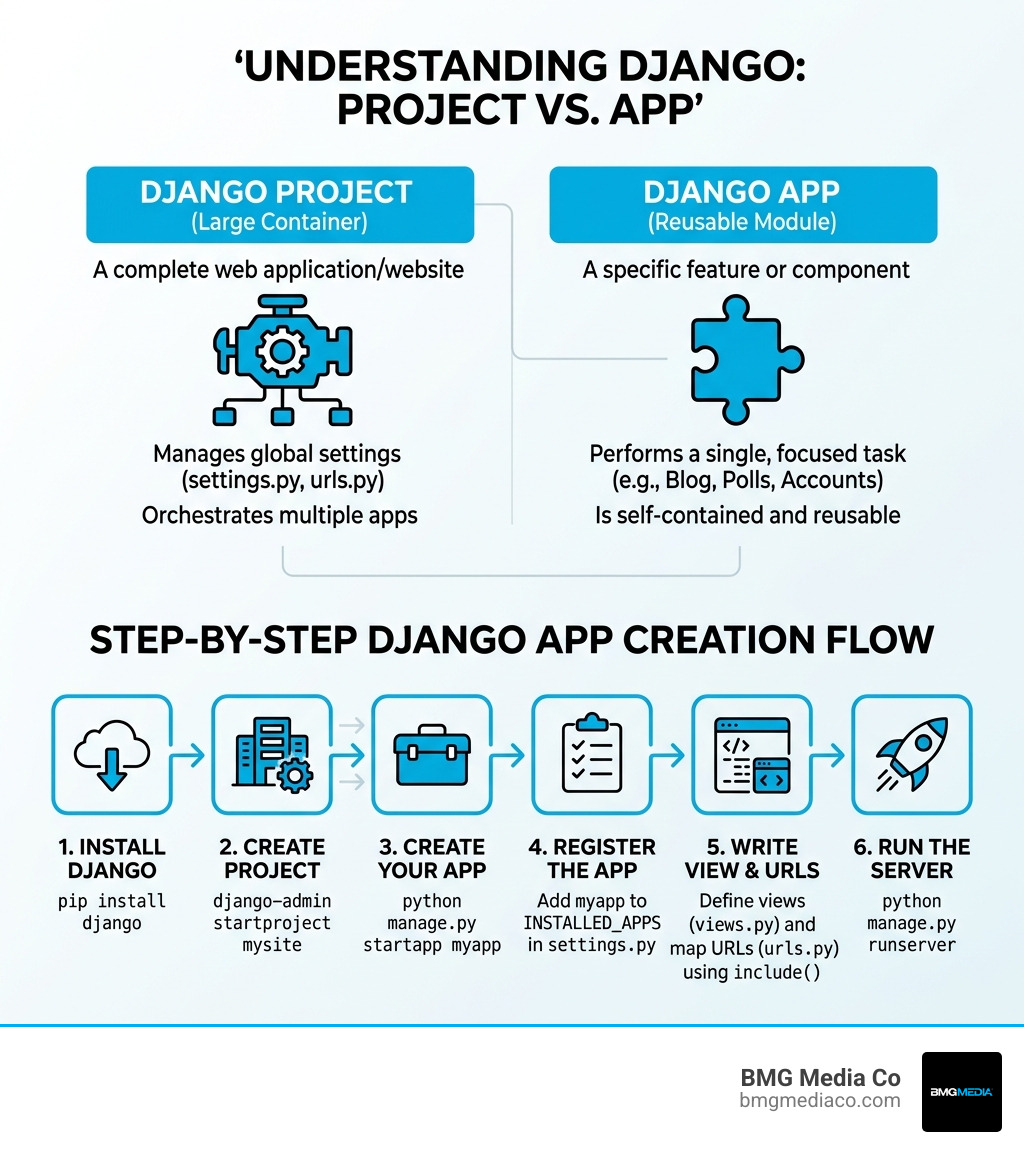
Creating a Django app is simpler than most developers expect — here’s the core process at a glance:
pip install djangodjango-admin startproject mysitepython manage.py startapp myappINSTALLED_APPS in settings.pyviews.py and return an HttpResponseurls.py in your app and connect it to the project using include()python manage.py runserverThat’s the skeleton. Everything else is detail.
Django is one of the most popular Python web frameworks — and for good reason. It gives you a clean, modular structure right out of the box. Whether you’re building a simple members database, a contact form, or a full data-driven platform, Django’s app-based architecture keeps your code organized and scalable.
The key idea: a Django project is the whole website. A Django app is one specific piece of it — like a poll system, a blog, or a product catalog. Apps are self-contained, and that’s what makes them powerful. You can reuse them across multiple projects, or even package and share them publicly.
I’m Blake George, founder of BMG MEDIA, a web design and development agency with over a decade of experience building custom digital platforms — including Python-based solutions — for businesses ranging from startups to multi-billion-dollar enterprises. My team has helped hundreds of companies navigate decisions around creating a Django app and structuring scalable web applications that actually perform. In this guide, I’ll walk you through everything you need to get your first Django app running — fast.
Creating a django app terms to remember:
When we talk about creating a django app, the first point of confusion for many developers is the distinction between a “project” and an “app.” In Django, these are not synonyms.
Think of a Django project as the entire shopping mall. It contains the overall configuration, the security settings, the main entrance (the root URL configuration), and the shared database settings. It is the container for your entire website.
A Django app, on the other hand, is an individual store within that mall. One app might handle the “Blog” functionality, another might handle “User Profiles,” and a third might be a “Contact Form.” This modular design is intentional. Because apps are self-contained, you can theoretically take your “Blog” app and plug it into a completely different project with minimal changes.
This architecture promotes reusability and clean code. In fact, a newly created Django project already includes six default applications in its INSTALLED_APPS setting, handling things like authentication and administrative interfaces. By following this pattern, we ensure that our code remains organized as the project grows. If you’re still weighing your options, you might want to Stop Stressing and Pick a Web App Development Framework Already and commit to the MVT (Model-View-Template) architecture that Django offers.
For a deep dive into the philosophy of these structures, the Writing your first Django app, part 1 | Django documentation | Django provides an excellent breakdown of how these components interact in the latest versions of the framework.
Now that we understand the “why,” let’s get into the “how.” We always recommend working within a virtual environment. This keeps your project’s dependencies isolated from your system’s global Python installation, preventing “it works on my machine” headaches later.

To start creating a django app, you’ll use the manage.py utility. This is a command-line tool that Django generates for you when you create a project. It acts as a wrapper around the django-admin tool, but it’s tailored specifically to your project’s settings.
First, navigate to your project directory (where manage.py lives) and run:
python manage.py startapp polls
(In this example, we’re calling our app “polls,” a classic choice from the official documentation).
A few naming conventions to keep in mind:
blog, members, or store.django or test, as these will conflict with the framework’s internal modules.At BMG Media Co, we frequently leverage Technology: Python for its readability and the speed at which we can move from an idea to a functional prototype. Using startapp is the first real step in that journey.
Creating the files isn’t enough; Django needs to know the app exists. To do this, open your project’s settings.py file. Look for the INSTALLED_APPS list. You’ll see those six default apps we mentioned earlier (like django.contrib.admin and django.contrib.auth).
Add your new app to this list. It is a best practice to use the full path to the AppConfig class found in your app’s apps.py file. For our “polls” app, it would look like this:
Adding it immediately after creation ensures that Django’s ORM (Object-Relational Mapper) can track your models and that the template engine knows where to look for files. For more on configuration, check Writing your first Django app, part 2 | Django documentation | Django.
When you run the startapp command, Django generates a specific directory structure. It might look like a lot of files for a “simple” app, but each has a distinct purpose that saves you time in the long run.
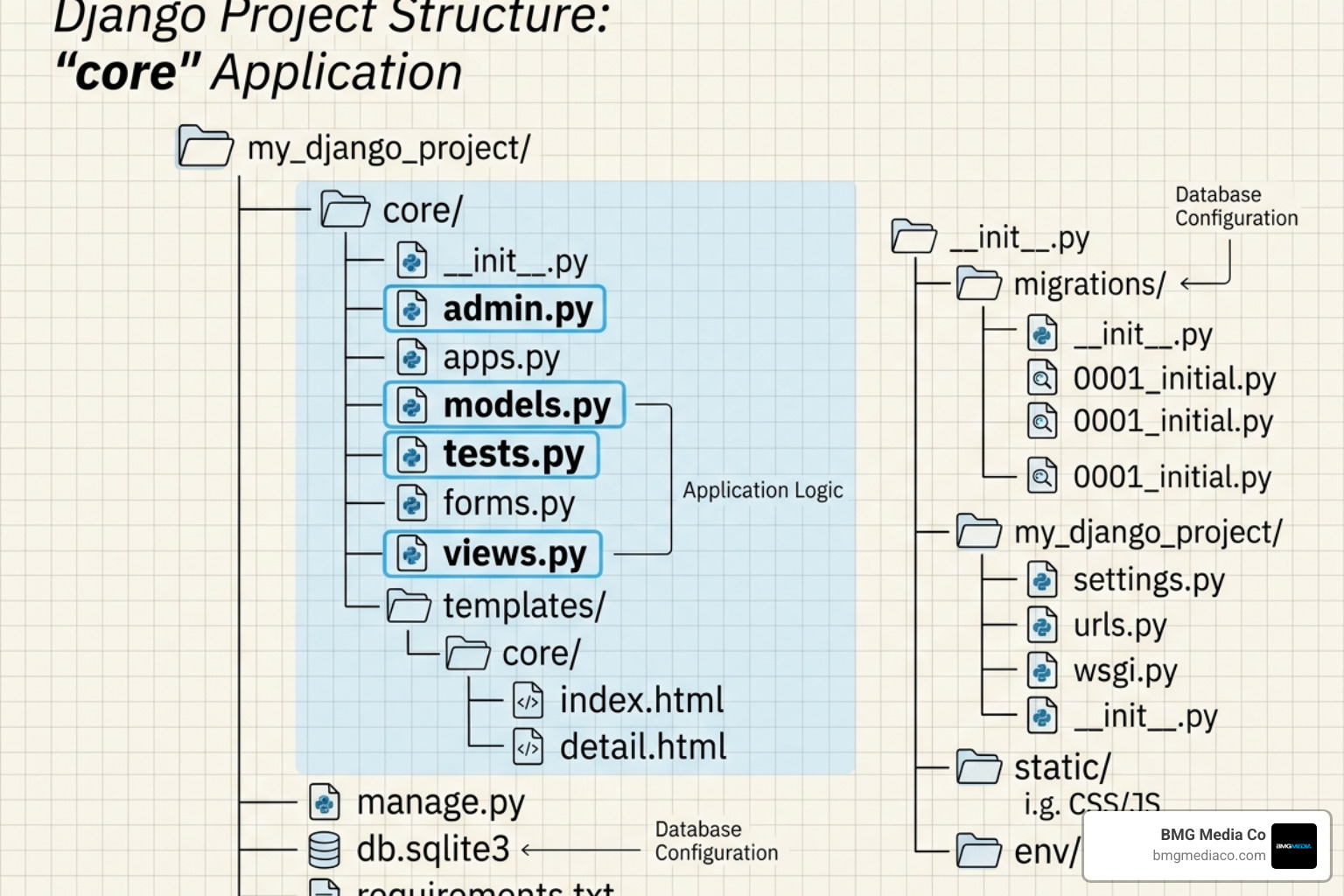
models.py: This is where you define your data structure. Django uses an ORM, meaning you write Python classes, and Django handles the SQL to create database tables.views.py: The “brain” of your app. This file contains the logic that takes a web request and returns a response.admin.py: Django includes a “free” administrative interface. You register your models here to manage data through a beautiful, built-in UI.apps.py: Contains the configuration for the app itself.tests.py: A dedicated spot for automation. We always suggest writing tests early to ensure your Python Web Development 101: From Script to Cloud journey is a smooth one.migrations/: This folder keeps a history of your database changes, allowing you to evolve your data structure without losing information.To make your app accessible to the world, you need to map a URL to your views. While you could put all your URLs in the project’s main urls.py, that breaks the modularity we’re aiming for.
Instead, create a new file named urls.py inside your app directory. This allows for “plug-and-play” patterns. You define the URLs for the app locally, and then you use the include() function in the main project urls.py to point to them.
As noted by Django Create App – W3Schools, this separation means if you move the app to a new project, the URL logic moves with it.
The simplest view you can write is one that returns a plain text “Hello World.” In your polls/views.py, you would write:
This represents the fundamental request-response cycle: the user asks for a page (the request), and your function provides the content (the HttpResponse).
As you get deeper into creating a django app, you might run into more complex scenarios. For instance, should you use django-admin or manage.py?
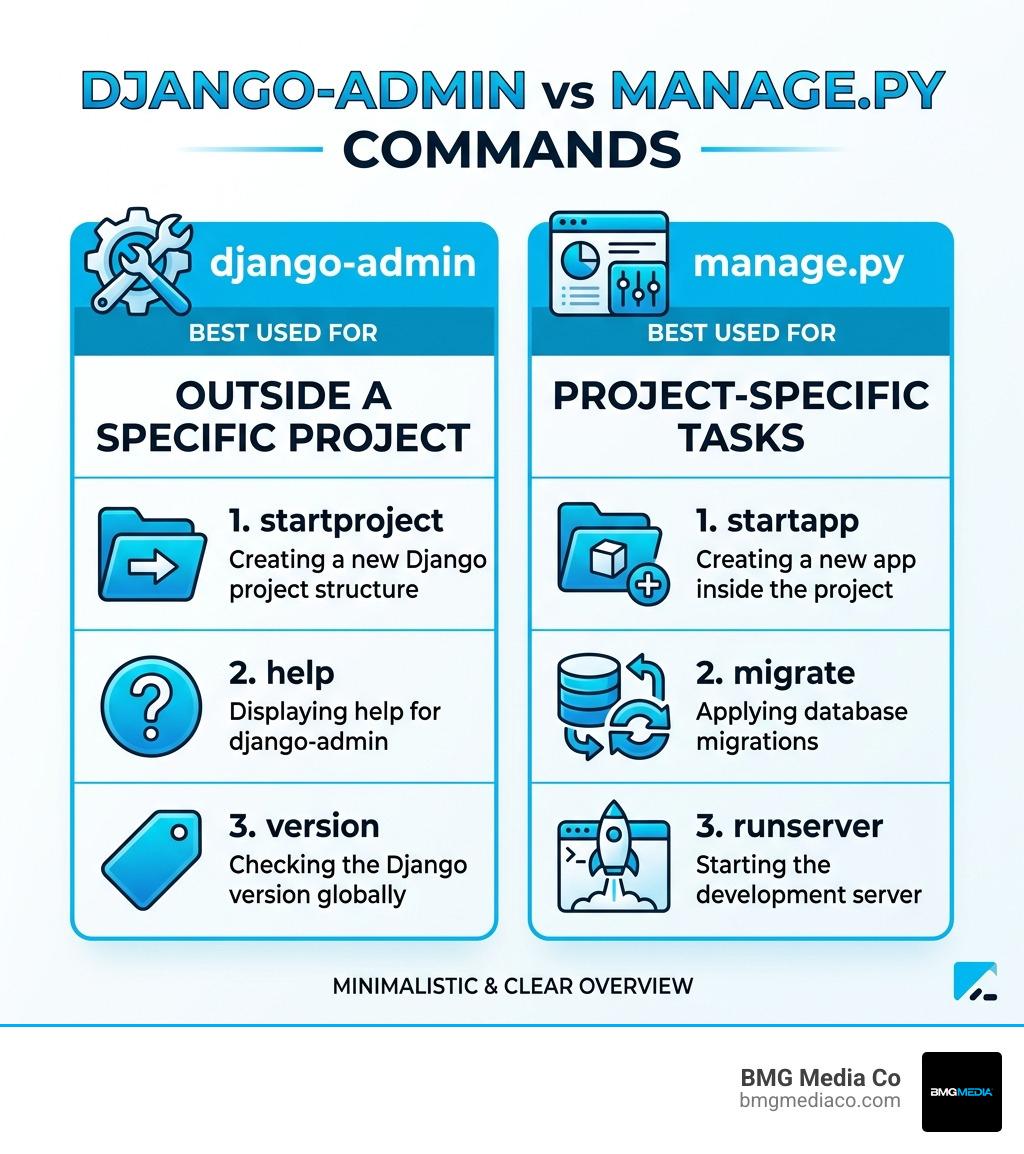
| Command | Best Used For |
|---|---|
django-admin |
Tasks outside a specific project (like startproject). |
manage.py |
Project-specific tasks (like startapp, migrate, runserver). |
Sometimes, a project gets so large that you want to group related apps together. While Django doesn’t have a native “sub-app” concept, you can create a directory, add an __init__.py file to make it a Python package, and then create your apps inside that. Just remember to use dot notation in your INSTALLED_APPS (e.g., my_group.my_app).
After defining models, you must run python manage.py makemigrations and python manage.py migrate. This is a common stumbling block for beginners. If things aren’t working as expected, the Django Debug Toolbar is a lifesaver. It’s a third-party package that provides a detailed breakdown of SQL queries, headers, and performance metrics. Speaking of performance, don’t forget to review Performance Web Testing: Don’t Let Your Load Time Explode to ensure your app stays fast as it scales.
Yes, but with a caveat. Django treats all registered apps as top-level entities. To organize them into a directory hierarchy, you must ensure every parent directory has an __init__.py file. When registering the app in settings.py, use the full dot-notated path (e.g., project_name.apps.blog_app.apps.BlogAppConfig).
Django’s runserver uses a “stat-based” polling mechanism. It monitors your Python files for changes. When you save a file, the server detects the change in the file’s timestamp and restarts itself. It usually only reloads Python code; adding new files (like a new urls.py) might occasionally require a manual restart.
INSTALLED_APPS or there is a typo in the path.Creating a django app is the first step toward building powerful, scalable web solutions. By following the project-and-app architecture, you’re setting yourself up for a codebase that is easy to maintain and even easier to grow.
At BMG Media Co, we specialize in taking these foundational technologies and turning them into high-performance, custom digital experiences. Based in Birmingham, Michigan, our award-winning team has completed over 1,000 sites, focusing on fully custom builds—never templates. Whether you need a complex manufacturing site, a custom CMS, or a secure web application, we have the expertise to bring your vision to life.
Ready to take your project from a “Hello World” to a market leader? Explore our Custom Web Design and Development Services and let’s start building something incredible together.
